Streamer Mode prepares the dashboard for capture in OBS or any other broadcast software. This page explains each of its settings and how to set them up.
Turning it on
- Open the dashboard and press the i button in the top right.
- Choose Streamer Mode in the list on the left.
- Turn on Streamer mode. The other settings on the tab appear.
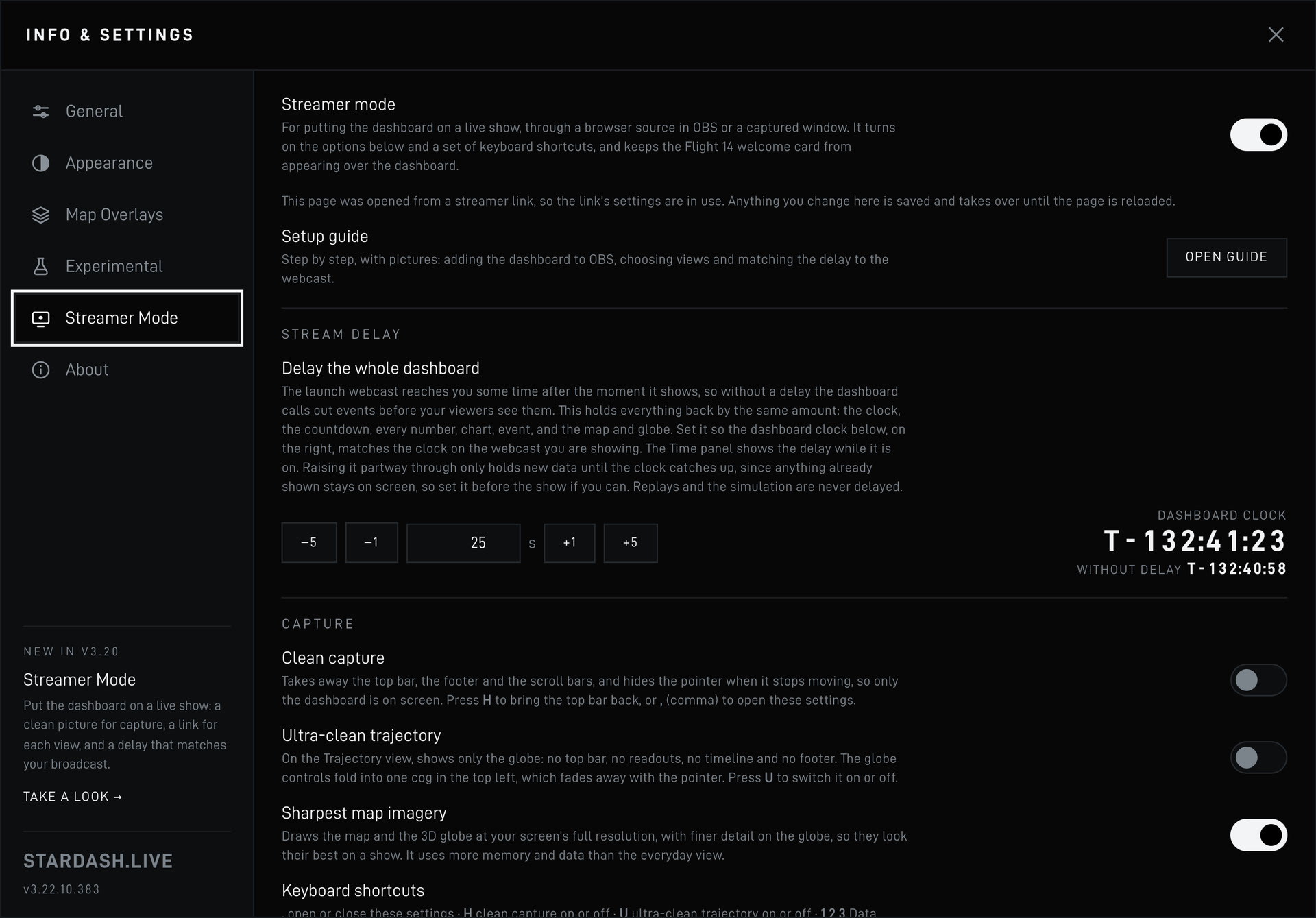
Streamer mode on its own turns on the keyboard shortcuts below and stops the Flight 14 welcome card from appearing over the dashboard.
The views
Each browser source can open on one of three views. The films below show each view in clean capture during the Flight 14 simulation.
On either Trajectory view, Camera sets how the globe is framed. If the globe is moved, it returns to this framing after 10 seconds.
- Free to move
- The globe stays where it is left.
- Follow the ship
- The camera tracks the ship.
- Whole Earth
- The whole planet stays in frame.
- Whole Earth, ship in the middle
- The whole planet, north up, with the ship in the centre.
The dashboard's third tab, Streams, can also be opened from a link.
Stream delay
The webcast reaches a show some time after the events it shows. The dashboard does not have that lag, so without a delay it shows events before the viewers see them on the webcast.
The stream delay holds the whole dashboard back by a set number of seconds: the clock, the countdown, every number, chart and event, the map and the globe. Data appears when the delayed clock reaches the moment it describes.
Matching it to the webcast
- Put the webcast, as your show receives it, next to the Streamer Mode settings.
- Compare the webcast's clock with the Dashboard clock on the right of the Stream delay row.
- If the dashboard is ahead, add delay. If it is behind, remove delay. Use −5, −1, +1, +5, or type a number of seconds from 0 to 300.
- Adjust until both clocks change second at the same moment.
- Copy your links again so they include the delay (see Links for browser sources).
Example: the webcast reads T+02:20 and the Dashboard clock reads T+02:45. Add 25 seconds and both read T+02:20.
Set the delay before the show. Lowering it mid-flight moves the clock forward at once. Raising it holds new data until the delayed clock catches up; what is already on screen stays.
While a delay is set, the Time panel in the console shows a STREAM DELAY row. Flight 13 replays and the Flight 14 simulation are never delayed.
Capture settings
- Clean capture
- Removes the top bar, the footer and the scroll bars, and hides the pointer after it stops moving for 2 seconds.
- Ultra-clean trajectory
- On the Trajectory view, shows the globe only. It removes the top bar by itself, so Clean capture does not need to be on.
- Sharpest map imagery
- On by default in Streamer Mode. Draws the map and the globe at the screen's full resolution, with finer detail on the globe. It uses more memory and data.
Keyboard shortcuts
The shortcuts work while Streamer mode is on. In OBS, right click the browser source and choose Interact to send key presses to it.
| , | Open or close the Streamer Mode settings |
| H | Clean capture on or off |
| U | Ultra-clean trajectory on or off |
| 1 2 3 | Data, Trajectory, Streams |
| [ ] | Delay one second less or more |
| { } | Delay five seconds less or more |
A change to the delay or the capture made from the keyboard shows a note in the bottom left corner for a moment. It is visible in the capture while it is there.
Links for browser sources
Under Link for a browser source, choose a View, and a Panel or Camera if it applies, then press Copy link. The link carries the current delay and capture settings.
- In OBS, add a Browser source.
- Paste the link as its URL.
- Set the width and height to your canvas, for example 1920 x 1080.
- Repeat with a new link for each view you want.
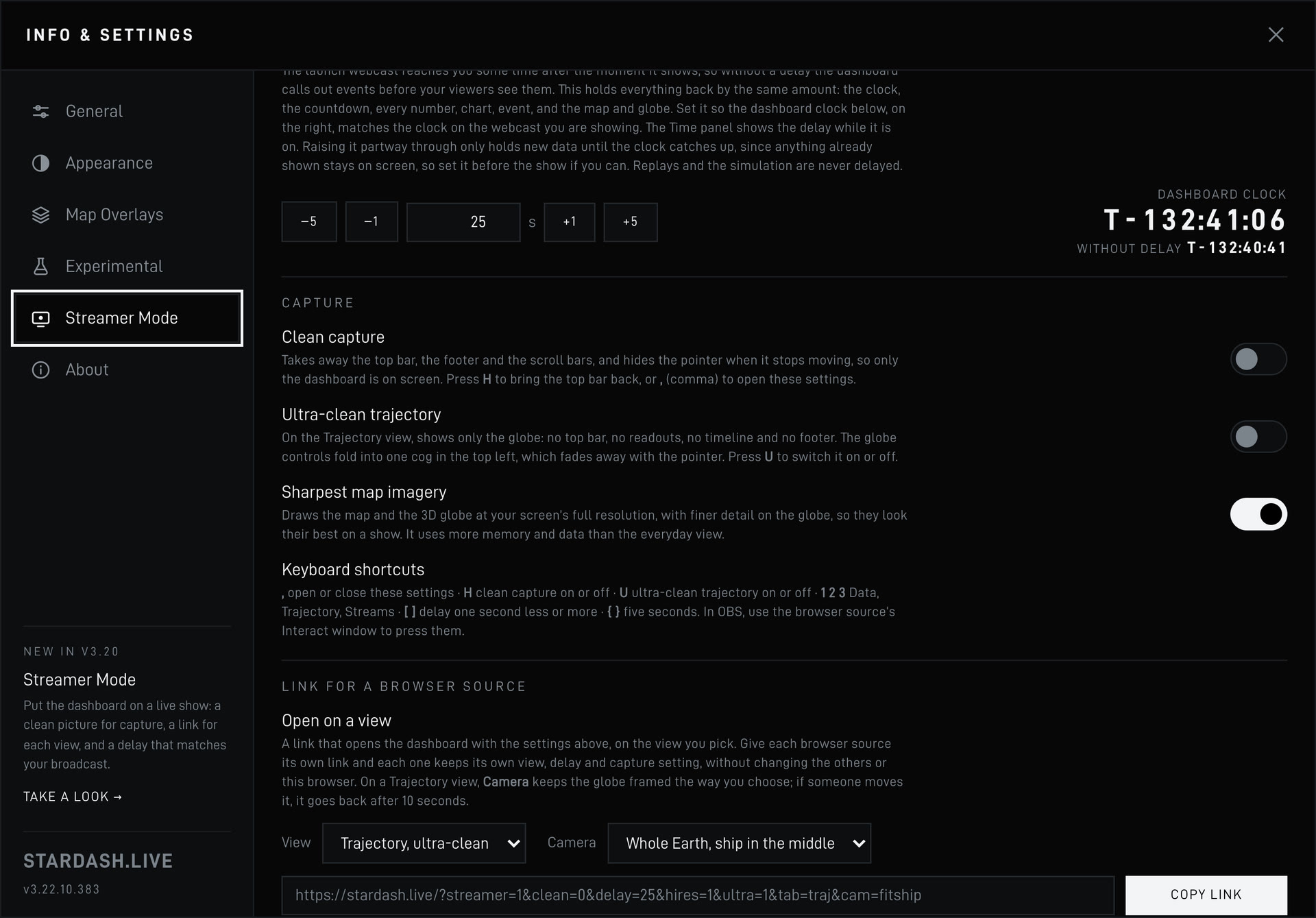
Link parameters
https://stardash.live/?streamer=1&clean=1&delay=25&tab=data&pane=map
- streamer
1turns on Streamer mode. It is also on whenclean,delay,ultraorhiresis present.- clean
1or0. Clean capture.- delay
- Seconds, 0 to 300, to one decimal place. A value out of range is clamped; an invalid one is 0.
- tab
data,trajorstream. The view that opens.- ultra
1or0. Ultra-clean trajectory.- hires
1or0. Sharpest map imagery.- cam
follow,fitorfitship, withtab=traj. Follow the ship, Whole Earth, or Whole Earth with the ship in the middle.- pane
traj,orbit,therm,path,maporcustom, withtab=data. The console panel that opens.
A link's settings apply to that page only and are never saved, so sources cannot change each other. A change made in a source's settings panel lasts until that source reloads; after that, the link's settings apply again.
OBS notes
- Leave Shutdown source when not visible off for a source that must be ready the moment you switch to it. A source that restarts reloads the page and rebuilds its history.
- Test every link in your OBS setup before the show, check the keys through Interact, and set the delay against the real webcast.
- Keep the map credit on screen. The satellite imagery requires it. In ultra-clean it moves to the top right.
- Use a Flight 13 replay or the Flight 14 simulation to rehearse a layout. Neither is delayed.
- Streamer Mode contacts no new services and sends nothing about you or your show. See the privacy policy.